How can you get LinkedIn Premium easily and for free?
On LinkedIn, you can sign up for the free plan or for a Premium plan.
The free plan lets you use most of LinkedIn’s basic features.
You can absolutely make LinkedIn a first-rate ally in developing your personal brand without opting for a Premium plan.
However, if you want to go further and have access to new and specific features, it is still worthwhile to opt for one of the four Premium subscriptions…
What are the different Premium subscriptions?
On LinkedIn, you can choose from 4 subscriptions:
- The “Career” subscription: perfect for job seekers who want to find a job with LinkedIn
- The “Business” subscription: perfect for B2B companies that want to contact prospects
- The “Sales” subscription: perfect for companies that want to prospect with LinkedIn in earnest
- The “Hiring” subscription: perfect for recruiters who want to recruit with LinkedIn
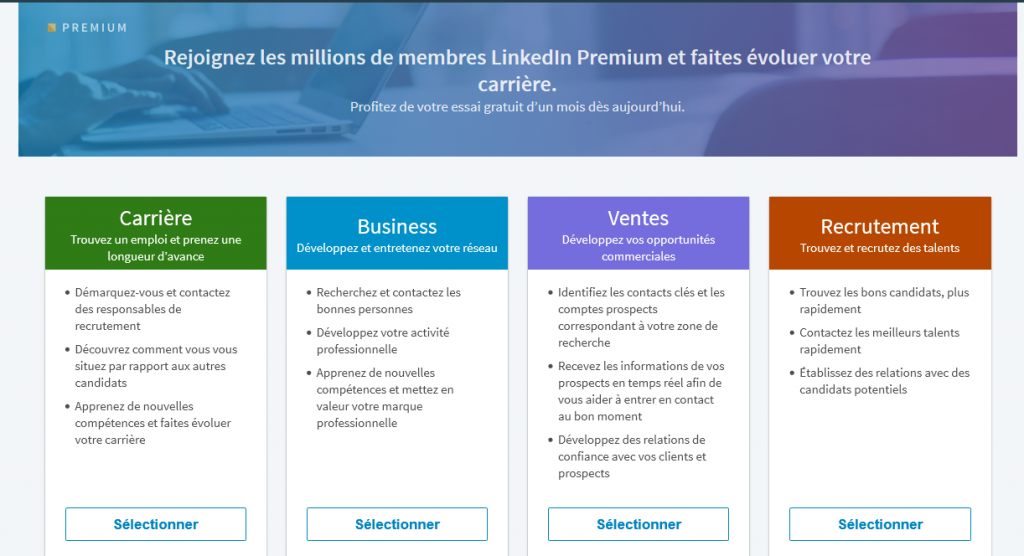
Depending on your situation, you can choose the one that best suits your activity on LinkedIn. I invite you to read my comparison of LinkedIn Premium subscriptions.
What are the benefits of a LinkedIn Premium account?
Premium subscriptions give you new features that are specific to each of them.
You will be able to:
- Display a LinkedIn Premium badge on your profile;
- See everyone who has viewed and visited your LinkedIn profile;
- Contact any LinkedIn member directly, even outside your professional network;
- Multiply the impact of your interactions;
- Send more InMails;
- Access certain LinkedIn company pages;
- Get more visibility;
- Etc.
See also: the benefits of LinkedIn Premium
As you will have gathered, LinkedIn is limited in its free version. With the Premium plan, you can use LinkedIn to its full potential.
How do you get a LinkedIn Premium subscription for free?
There are 3 ways to get a free Premium LinkedIn account or to use its features for free.
1. Sign up for the one-month LinkedIn Premium free trial
The price varies depending on the subscription chosen, the cheapest one costing around twenty euros a month.
However, before signing up for a Premium subscription, it can be worth making sure it will be useful to you.
To help you decide, LinkedIn gives you the opportunity to try the Premium plan free of charge for one month!
How to sign up for LinkedIn Premium for free: tutorial
- Log in to LinkedIn
- In the top menu, click “Try Premium for free” at the top right, next to the “Work” tab
- Answer the question “What do you want from a Premium subscription?” and choose from these answers:
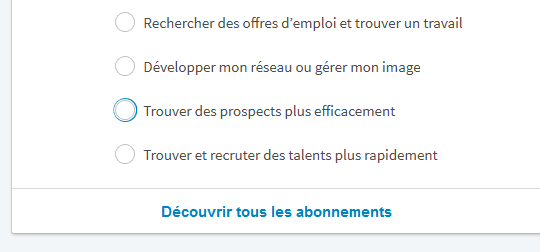
This question will help LinkedIn direct you to the right subscription.
- For example, if you answered “Find prospects more efficiently”, you will land on this home page:
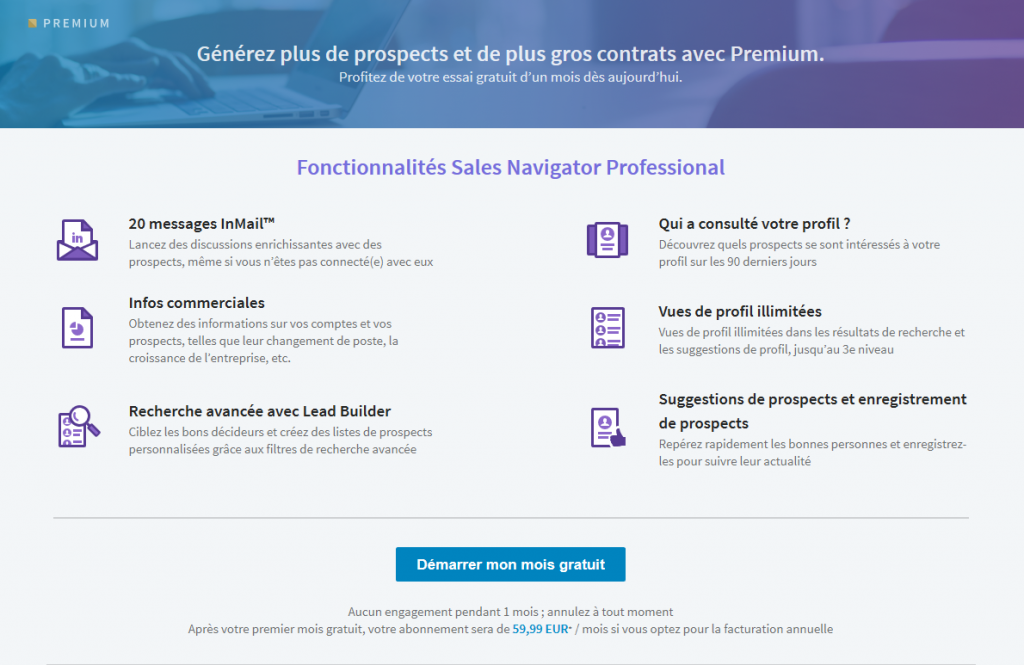
- Click “Start my free month”
Careful: if the Premium plan turns out not to suit you at the end of this free month, don’t forget to cancel it, or you will be charged.
You can manage your LinkedIn Premium account via this link: https://www.linkedin.com/premium/manage
How do you cancel LinkedIn Premium?
If you decide to cancel, you can do so easily:
- Click the “Me” icon at the top right
- Select “Premium subscription settings”
- Under “Manage Premium account”, click “Cancel subscription”
- Click “Continue”
Note: you do not have to wait until the end of the trial period to cancel. You can cancel the subscription as soon as you sign up.
After a year, you are free to sign up for a free trial month again.
2. Access LinkedIn Premium features with Boolean searches
Today, millions of professionals are online and competing with one another.
You have to push your searches further and further, with more and more precise criteria, to find your target.
Many of us therefore use what are known as Boolean searches.
This type of search uses a specific logic and precise operators to dig deep into Google’s search engine.
In other words, Boolean search lets you search Google using wildcard characters.
For example, “?” lets you replace one character. This one, “*”, lets you replace several characters. A user who wants to search for the terms “managing director” or “finance director” will type “* director” into Google.
Someone who wants to search for the terms “organization” or “organizer” will type “organiz*” into Google.
Note: the “*” is not supported by LinkedIn, only by Google.
There are a few ways to build your LinkedIn searches using Boolean logic.
- Quoted searches: if you are looking for an exact phrase, put the phrase in quotation marks. Example: “LinkedIn expert“. Careful! LinkedIn does not support this type of quotation mark («), only this one (“).
- NOT searches: the word NOT lets you exclude certain terms to narrow down your search results. How? Place the word NOT just before the term you want to exclude. For example, if you are looking for a LinkedIn specialist but do not want an ENT specialist, type in the search bar: “LinkedIn specialist NOT (ENT)”.
- OR searches: the word OR lets you broaden your search results. With the word OR, you can see results that include one or more items in a list. For example: “LinkedIn specialist OR marketing”.
- AND searches: build your own list with the word AND. If you are looking for several titles or positions on LinkedIn, simply type: “LinkedIn specialist AND marketing AND inbound marketing”.
- Searches with parentheses: searching with parentheses lets you run a more complex search by combining several terms.
Do you find this complicated? Give it a try. Otherwise, opt for the third and final way to access LinkedIn Premium data without paying.
3. Use Google to find LinkedIn Premium results
With LinkedIn’s free plan, the number of searches and the search criteria are limited each month.
You are then tempted to take out a LinkedIn Premium subscription to get around this obstacle.
If you decide to stay on the free plan, your only solution is to wait until the following month to continue your searches.
Not very appealing.
Did you know that you can get around this limit by using Google’s search engine?
Why Google? Because there is no limit on the number of searches. If you do too many searches, you will simply have to fill in “CAPTCHAs”.
How does it work?
To start, type the titles or positions you are looking for into Google, like this:
“LinkedIn specialist | Marketing project manager | SEO consultant” site:linkedin.com/in OR site:linkedin.com/pub -intitle:profiles -inurl:”/dir”.
Then all you have to do is look at the results.
You will see several LinkedIn profiles appear, with the names of people who match the positions you searched for.
All that is left is to click on the different profiles to find your target.
And there you have it: you have used a Premium feature completely free of charge and without racking your brains!
Getting LinkedIn Premium for free: conclusion
The free plan is sufficient, but opting for a LinkedIn Premium subscription lets you use LinkedIn optimally and boost your results. Although the Premium plan is paid, these different methods will let you use and test LinkedIn Premium features without spending a single euro.
Say thank you to… Proinfluent!
Seriously, though, thank me by subscribing to my newsletter, and I will give you a gift as well: the perfect LinkedIn profile checklist.